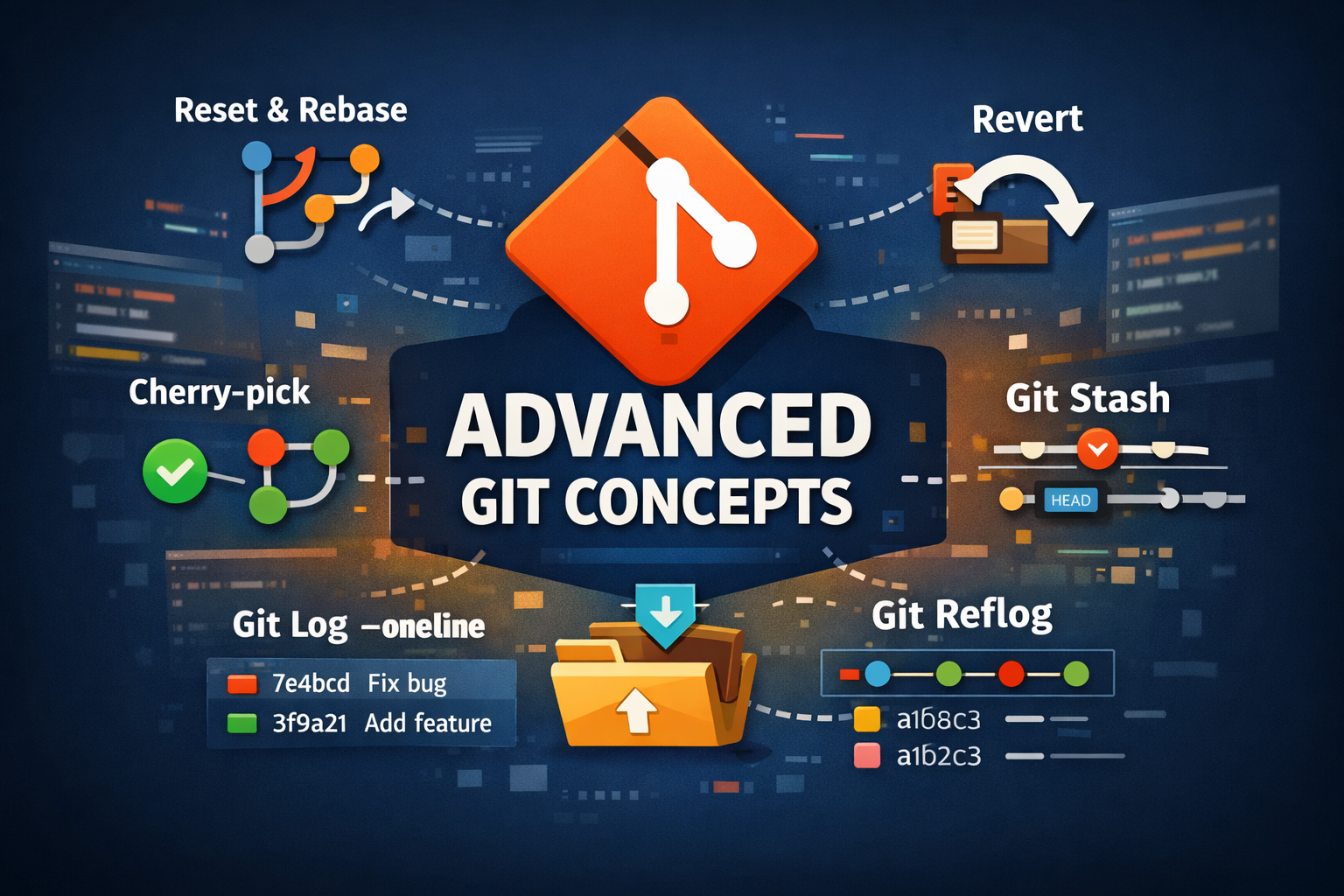
<img src={require('./img/git-commands.png').default} alt="Advanced Git Concepts" width="900" height="450" /> <br/> Git is more than just `add`, `commit`, and `push`. As projects grow and teams collaborate, understanding advanced Git commands becomes essential for maintaining a clean, traceable, and reliable history. This blog explains not only the commands but also **what each command actually does internally**, helping you use them confidently in real-world scenarios. Official Git Documentation: https://git-scm.com/docs --- ## Why Learn Advanced Git Concepts Advanced Git commands help you: - Fix mistakes without breaking history - Maintain a clean commit structure - Collaborate efficiently in teams - Recover lost commits and changes - Debug issues faster using commit history For teams deploying applications on https://nife.io/platform, clean Git practices ensure smoother CI/CD pipelines and predictable deployments. --- ## Step 1: Understanding Git Reset <img src={require('./img/gitadvance1.png').default} alt="Git Reset Soft vs Mixed vs Hard" width="800" height="450"/> <br/> `git reset` moves the HEAD pointer to a previous commit and optionally updates the staging area and working directory. ### Soft Reset ```bash git reset --soft HEAD~1 ``` **What it does:** - Moves HEAD to previous commit - Keeps all changes in staging area - No code is lost **When to use:** - When you want to modify the last commit --- ### Mixed Reset (Default) ```bash git reset HEAD~1 ``` **What it does:** - Moves HEAD back - Unstages changes - Keeps code in working directory **When to use:** - When you want to rework changes before committing again --- ### Hard Reset ```bash git reset --hard HEAD~1 ``` **What it does:** - Moves HEAD back - Deletes staging and working directory changes - Completely removes commit and code ⚠️ Warning: This permanently deletes changes. Reference: https://git-scm.com/docs/git-reset --- ## Step 2: Git Rebase vs Merge <img src={require('./img/gitadvance2.png').default} alt="Git Rebase vs Merge Diagram" width="800" height="450"/> <br/> ```bash git rebase main ``` **What it does:** - Takes your commits and reapplies them on top of another branch - Rewrites commit history to be linear **Why use it:** - Cleaner history - Easier debugging **Important:** - Avoid using on shared branches Reference: https://git-scm.com/docs/git-rebase --- ## Step 3: Git Revert ```bash git revert HEAD ``` **What it does:** - Creates a new commit that undoes previous changes - Does NOT delete history **Why use it:** - Safe for team environments - Keeps history intact Reference: https://git-scm.com/docs/git-revert --- ## Step 4: Git Cherry-pick <img src={require('./img/gitadvance3.png').default} alt="Git Cherry Pick Example" width="800" height="450" /> <br/> ```bash git cherry-pick <commit-id> ``` **What it does:** - Copies a specific commit from one branch to another - Applies only that change **Use case:** - Apply a bug fix without merging entire branch Reference: https://git-scm.com/docs/git-cherry-pick --- ## Step 5: Git Stash ```bash git stash ``` **What it does:** - Temporarily saves uncommitted changes - Cleans your working directory ```bash git stash pop ``` **What it does:** - Restores the latest stashed changes **Use case:** - Switching branches without committing incomplete work Reference: https://git-scm.com/docs/git-stash --- ## Step 6: Git Log --oneline ```bash git log --oneline ``` **What it does:** - Shows commit history in compact format - Displays short commit IDs and messages **Why use it:** - Quick debugging - Easy tracking of commits Reference: https://git-scm.com/docs/git-log --- ## Step 7: Git Reflog ```bash git reflog ``` **What it does:** - Tracks every movement of HEAD - Helps recover lost commits **Use case:** - Recover commits after reset or rebase Reference: https://git-scm.com/docs/git-reflog --- ## Real Scenario ```bash git log --oneline ``` → View commit history ```bash git reset --soft HEAD~1 ``` → Undo last commit but keep changes ```bash git commit -m "Fixed issue properly" ``` → Recommit corrected changes --- ## Best Practices - Avoid `git reset --hard` on shared branches - Use `git revert` for production fixes - Use `rebase` only for local cleanup - Use `stash` for temporary work - Use `reflog` as a recovery tool --- ## Conclusion Mastering advanced Git commands gives you full control over your repository and workflow. Understanding what each command does internally helps prevent mistakes and improves confidence while working in teams. When integrated with https://nife.io/solutions/deploy_containarized_apps, strong Git practices ensure stable releases, easier debugging, and reliable CI/CD pipelines. Learn more: https://nife.io