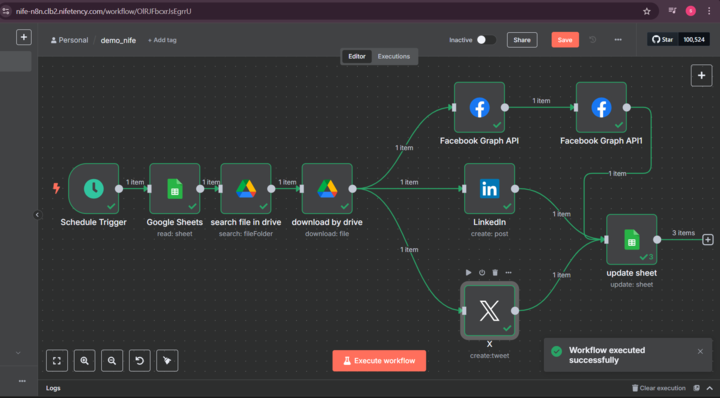
**I Automated My Social Media Posting — So I Can Actually Enjoy My Evening** **Or: how I taught n8n to handle my content hustle like a virtual assistant on steroids.** --- ## Why I Did This If you're anything like me, managing social media feels like a full-time job you didn’t apply for. I found myself copying captions from Google Docs, downloading images, opening apps, pasting everything, uploading, re-uploading, clicking around — for **each** platform. Every. Single. Time. That’s when I thought: _“Can I automate this mess and just control everything from a Google Sheet?”_ Spoiler: Yes. You totally can. If you're new to automation, [n8n's getting started docs](https://docs.n8n.io/getting-started/installation/) are a great place to begin. --- ## What I Built Using **n8n**, I created a workflow that does the following — all by itself: - Looks at a Google Sheet for scheduled posts - Finds the image in Google Drive - Posts the content to **Instagram**, **LinkedIn**, and **X (formerly Twitter)** - Updates the Sheet so I know what’s been posted And the best part? I don’t even have to be awake for it to run. --- ## The Stack This is a no-code/low-code build. Here’s what I used: - **n8n** for automation - **Google Sheets** as my content planner - **Google Drive** to store my media - **Facebook Graph API** to post on Instagram - **Twitter API** - **LinkedIn API** Looking to integrate more platforms? Check out [n8n’s list of integrations](https://n8n.io/integrations/) — it supports hundreds of apps. --- ## How It Works ### 1. **The Schedule Trigger** It all starts at 7 PM. n8n checks if there’s any post with `Status = Scheduled`. ### 2. **Pull from Google Sheets** If there's something to post, it grabs: - The filename of the image - The caption (called “Links” in my sheet) - The row number (to update later) ### 3. **Search & Download the Image** Using the filename, it finds the matching image in a shared Google Drive folder and downloads it. ### 4. **Post It Everywhere** Then, using different APIs: - It tweets the caption on **X** - Posts the image + caption to **LinkedIn** - Uploads the image and publishes it on **Instagram** via the **Facebook Graph API** (yep, it’s a 2-step process) ### 5. **Update the Sheet** Once done, it changes the `Status` to `Uploaded` — so nothing gets posted twice. --- ## My Sheet Looks Like This | Topics | File name | Links (caption) | Status | |----------|-------------|--------------------------|-----------| | Weekend | beach.png | “Weekend vibes” | Scheduled | | Code Life| code.jpeg | “New dev blog out now” | Uploaded | --- ## Things I Learned - Instagram’s API is wild. You’ll need a Facebook Business Page, a connected IG account, and a developer app. But once it's set up, it’s smooth. - OAuth tokens will test your patience. Save them in n8n credentials and be kind to your future self. - Debugging in n8n is a joy. You can click on any node, see the exact data flowing through, and fix stuff on the fly. --- ## What’s Next - Add OpenAI to auto-generate captions (maybe even suggest hashtags) - Log post metrics in Notion - Make it support image **carousels** and **videos** --- ## How to Get Started <img src={require('./img/workflow_720.png').default} alt="Diagram illustrating the n8n content automation workflow" width="800" height="350"/> <br/> 1. **Sign up for n8n**: It’s free to start, and you can self-host or use their cloud version. 2. **Create a Google Sheet**: Set up your content planner with columns for topics, file names, captions, and status. 3. **Connect Google Drive**: Store your images in a shared folder. 4. **Set Up n8n Workflow**: Use the Google Sheets, Google Drive, and social media nodes to build your automation. 5. **Test It**: Run the workflow manually first to make sure everything works as expected. 6. **Schedule It**: Set the trigger to run at your preferred time (like 7 PM) so it posts automatically. 7. **Sit Back and Relax**: Enjoy your evenings while n8n does the heavy lifting. 8. **Iterate**: Keep improving your workflow as you learn more about n8n and your social media needs. --- ## Final Thoughts This isn’t just a time-saver — it’s a mindset shift. Automate the repetitive stuff, so you can focus on the fun, creative, human things. Hope this inspires you to give your own daily hustle a virtual assistant. If you try it — let me know. I’d love to see what you build! You can also explore tools like n8n on the [Nife.io Marketplace](https://nife.io/marketplace/) to easily automate your cloud storage and workflow operations For better team collaboration and project visibility, try Teamboard from [Nife.io](https://launch.nife.io/teamboard)—a unified space to manage tasks, track progress, and work more efficiently.