Canary Deployment: Safer Releases with Staged Rollouts
Canary deployment sends a new version to a small share of users first, then raises traffic as metrics stay healthy. Learn the steps, tools and rollback rules.

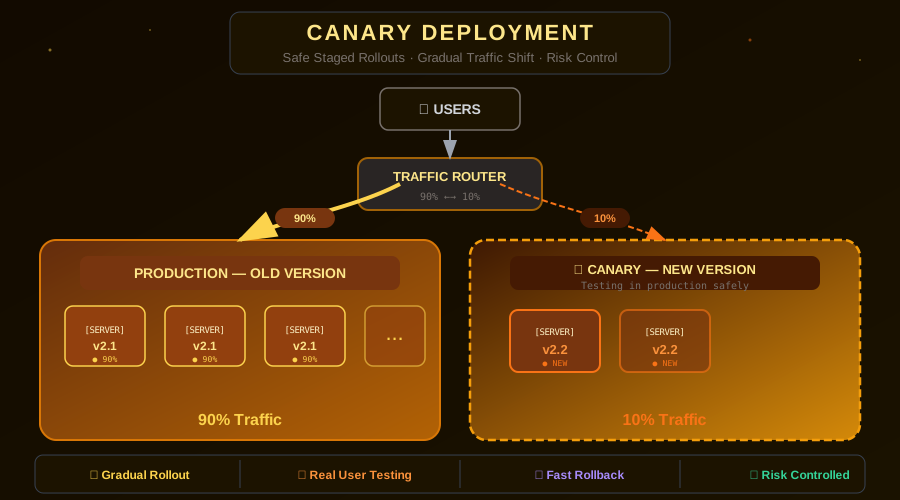
The name comes from an old mining practice: canary birds were sent into coal mines before humans to detect toxic gases. If the canary survived, it was safe to proceed. In software deployment, a canary release works the same way — you send a small portion of your traffic to the new version first, observe how it behaves, and only proceed with the full rollout if everything looks healthy.
Canary deployment is one of the most powerful risk-reduction strategies among all types of deployment strategies in modern DevOps. It allows you to test your new release with real production traffic while limiting your blast radius to a small percentage of users.
What Is Canary Deployment?
In a canary deployment, you deploy the new version of your application alongside the existing production version. Instead of switching all traffic at once (as in blue-green deployment — or its blue-green deployment on Kubernetes variant), you route only a small percentage of users — typically 1–10% — to the new version.
You monitor this small group closely. If error rates, latency, and business metrics look healthy, you gradually increase the traffic percentage. If something goes wrong, you route all traffic back to the old version — usually affecting only the small canary group.
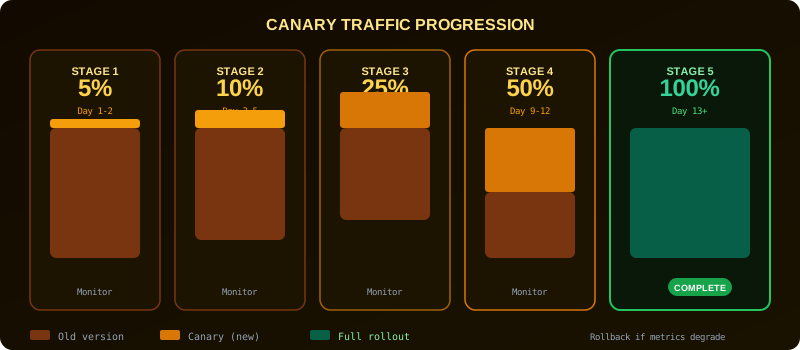
This illustrative staged approach uses a 24-48-hour observation window. It is separate from the faster Flagger example below:
- Stage 1: Deploy new version, route 5% of traffic
- Stage 2: Monitor for 24–48 hours, increase to 10%
- Stage 3: Monitor, increase to 25%
- Stage 4: Monitor, increase to 50%
- Stage 5: Monitor, full rollout to 100%
How Canary Traffic Splitting Works
Traffic splitting in canary deployments can be implemented at several layers of your infrastructure.
Load Balancer Level
Modern load balancers like AWS ALB, NGINX, and HAProxy support weighted routing. You configure the load balancer to send a defined percentage of requests to the canary target group.
Service Mesh Level
Tools like Istio, Linkerd, and AWS App Mesh offer fine-grained traffic management through VirtualServices. This is the most flexible approach as it supports header-based routing, user segment targeting, and gradual weight changes without redeployment.
Application Level
Some teams implement canary logic in their application itself using feature flags. This gives you the most control but couples deployment logic to your application code.
Benefits of Canary Deployment
Reduced Blast Radius
If the new version has a critical bug, only a small fraction of your users are affected. The majority continue to use the stable version without interruption. This is especially valuable for high-traffic systems where even a 1% error rate translates to thousands of users.
Real User Testing
Unlike staging environments, canary deployments test your code with real production traffic, real data, and real user behavior. Issues that only manifest under real load conditions are caught before they affect your entire user base.
Data-Driven Release Decisions
Canary deployments force you to define what "healthy" means before you deploy. By establishing baseline metrics and monitoring them during the canary phase, you make release decisions based on data rather than gut feeling.
Gradual Risk Increase
Each stage of a canary deployment is a small, manageable risk increment. Rather than a single high-risk all-or-nothing switch, you have multiple checkpoints where you can pause, investigate, or roll back.
What to Monitor During a Canary
Effective canary deployments require robust monitoring. Here are the critical metrics to track.
Error Rate
Compare the HTTP error rate (4xx and 5xx responses) between your canary instances and production instances. A significant increase in errors from the canary is a strong signal to roll back.
Latency (P95, P99)
Latency regressions often indicate a performance problem in the new version. Monitor both average latency and tail latency (P95, P99) to catch outliers that averages can mask.
Business Metrics
Depending on your application, track conversion rates, checkout completion rates, sign-up rates, or other key business metrics. A technically healthy canary can still degrade business outcomes if the new version has a UX regression.
Resource Utilization
Monitor CPU, memory, and database connection usage. Sometimes a new version has a memory leak or inefficient query that only becomes apparent under production load.
Implementing Canary on Kubernetes
Here is how to implement a canary deployment on Kubernetes using replica counts as the traffic split mechanism.
# production-deployment.yaml
apiVersion: apps/v1
kind: Deployment
metadata:
name: my-app-production
spec:
replicas: 9 # 90% of traffic
selector:
matchLabels:
app: my-app
template:
metadata:
labels:
app: my-app
spec:
containers:
- name: my-app
image: my-registry/my-app:v2.1.0
---
# canary-deployment.yaml
apiVersion: apps/v1
kind: Deployment
metadata:
name: my-app-canary
spec:
replicas: 1 # 10% of traffic
selector:
matchLabels:
app: my-app
template:
metadata:
labels:
app: my-app
spec:
containers:
- name: my-app
image: my-registry/my-app:v2.2.0
Since both Deployments use the same app: my-app label, the Kubernetes Service distributes traffic proportionally based on replica counts. With 9 production replicas and 1 canary replica, approximately 10% of traffic goes to the canary.
# Apply both deployments
kubectl apply -f production-deployment.yaml
kubectl apply -f canary-deployment.yaml
# Verify pods are running
kubectl get pods -l app=my-app
Using Istio for Precise Traffic Control
For more precise traffic control independent of replica counts, use Istio's VirtualService.
apiVersion: networking.istio.io/v1alpha3
kind: VirtualService
metadata:
name: my-app
spec:
hosts:
- my-app
http:
- route:
- destination:
host: my-app-production
weight: 90
- destination:
host: my-app-canary
weight: 10
To advance the canary, simply update the weights:
# Increase canary to 25%
kubectl patch virtualservice my-app --type=merge -p \
'{"spec":{"http":[{"route":[{"destination":{"host":"my-app-production"},"weight":75},{"destination":{"host":"my-app-canary"},"weight":25}]}]}}'
Automated Canary Progression
Manual canary advancement is error-prone and time-consuming. Tools like Flagger, Argo Rollouts, and Spinnaker can automate the entire progression.
# Flagger Canary resource
apiVersion: flagger.app/v1beta1
kind: Canary
metadata:
name: my-app
spec:
targetRef:
apiVersion: apps/v1
kind: Deployment
name: my-app
progressDeadlineSeconds: 600
analysis:
interval: 1m
threshold: 5
maxWeight: 50
stepWeight: 10
metrics:
- name: request-success-rate
thresholdRange:
min: 99
interval: 1m
- name: request-duration
thresholdRange:
max: 500
interval: 1m
In this illustrative Flagger configuration, analysis.interval: 1m and stepWeight: 10 set a one-minute analysis cadence and 10-percentage-point traffic steps. This is a separate approach from the 24-48-hour staged example above, not a default cadence for every canary deployment. If metrics degrade below the threshold at any point, Flagger automatically rolls back the canary.
When to Roll Back
You should immediately roll back a canary deployment if you observe:
- Error rate more than 2x the baseline
- P99 latency increase of more than 20%
- Any critical business metric regression
- Unexpected memory or CPU spikes
- Customer support escalations from the canary user group
Canary vs Blue-Green
Canary and blue-green are both zero-downtime strategies, but they serve different purposes:
| Aspect | Canary | Blue-Green |
|---|---|---|
| Risk reduction | Gradual, staged | Instant switch |
| Rollback speed | Seconds | Seconds |
| Infrastructure cost | Same as production | 2x during switch |
| Testing with real users | Yes, small subset | No, full switch |
| Complexity | Higher | Lower |
Canary is better when you want to validate with real user data before full rollout. Blue-green is better when you want the simplest, fastest path to deploying and rolling back.
Simplify Canary Deployments with Nife
Nife supports canary deployment as a deployment strategy.
Conclusion
Canary deployment is one of the most effective risk-reduction strategies available to DevOps teams. By testing your new version with a small percentage of real production traffic before full rollout, you gain confidence in your releases while limiting the impact of potential issues. The investment in setting up monitoring and automated progression pays dividends every time you catch a production bug before it reaches your entire user base.
Learn more: Canary Monitoring and Rollback Strategies | A/B Testing Deployment
From the team at Nife
Deploy your next app in minutes, not days.
Nife is a multi-cloud edge platform that lets you deploy, scale, and manage applications globally without the infrastructure headache.